Workspaces in Alliesia
Create a Workspace in Alliesia
Creating a workspace in Alliesia is quick, intuitive, and helps you get started with team and client collaboration immediately. Follow the step-by-step guide below to set up your workspace and start managing projects efficiently.
Whether you are a team leader, project manager, or individual user, creating a workspace ensures your projects, tasks, and communications stay organized and accessible in one place.
Accessing the Create Workspace Option
You can create a new workspace from multiple locations within the Alliesia platform:
- From the Sidebar: Click the '+' icon next to 'Workspaces' and select 'Create Workspace'.
- From the Home Page: If your workspace list is empty, click the 'Create Workspace' button to start a new one.
- From existing workspace views: Use the 'Add Workspace' option if you need an additional workspace.
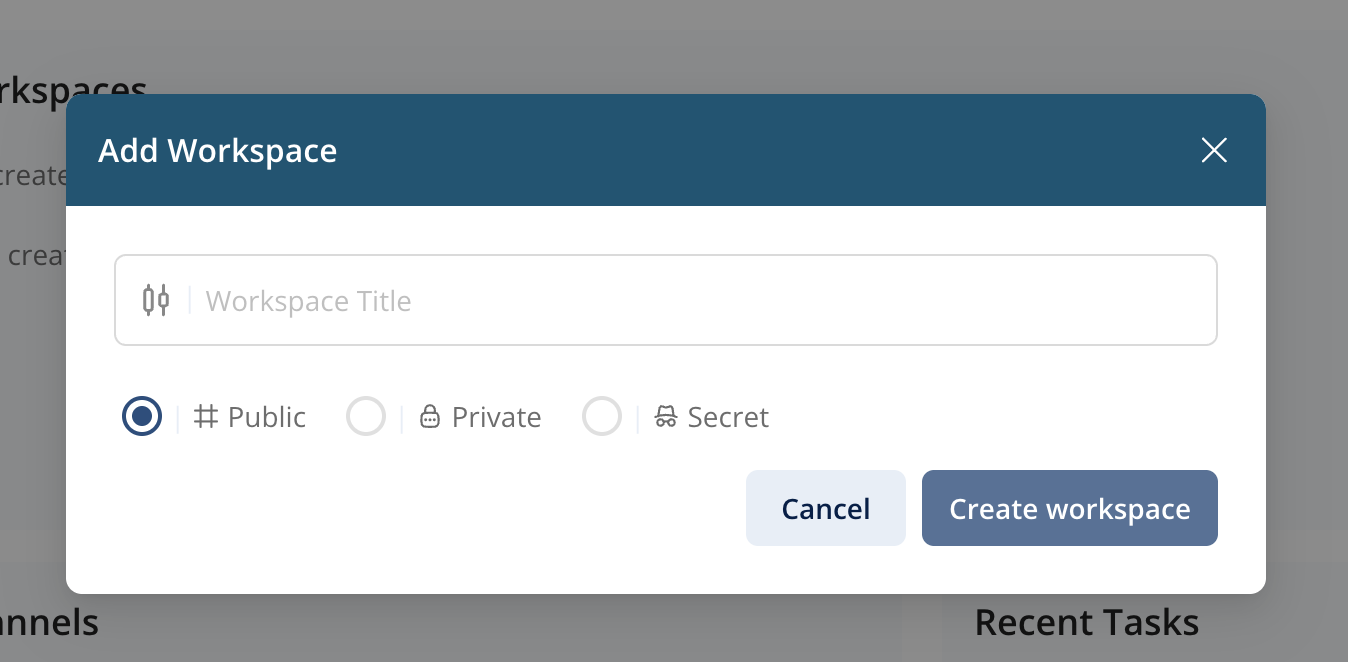
Step 1: Enter Workspace Name
Once the 'Create Workspace' pop-up opens, the first step is to provide a meaningful name for your workspace. Choose a name that clearly identifies the team, project, or client associated with it.
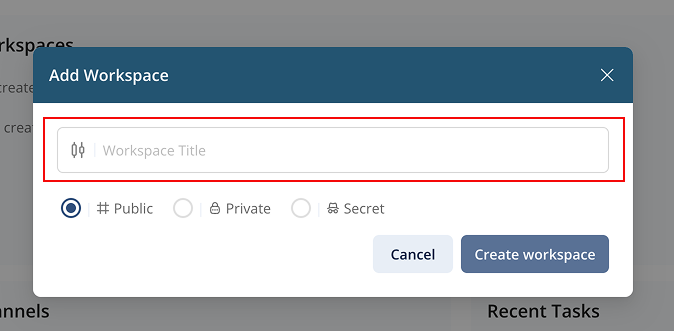
Step 2: Select Workspace Type
Alliesia offers three workspace types to suit different collaboration needs and privacy requirements:
- Public Workspace: Open to everyone in your organization; ideal for company-wide projects and shared resources.
- Private Workspace: Restricted to invited members; perfect for internal teams or sensitive projects.
- Secret Workspace: Fully hidden. Best for client collaboration or confidential projects.
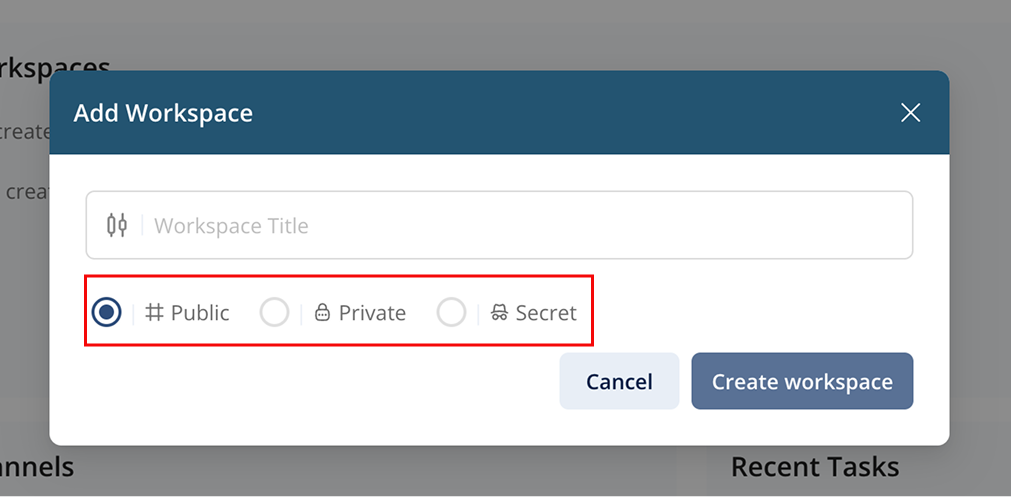
Select the type that fits your project and privacy needs. You can attach screenshots here showing the selection options.
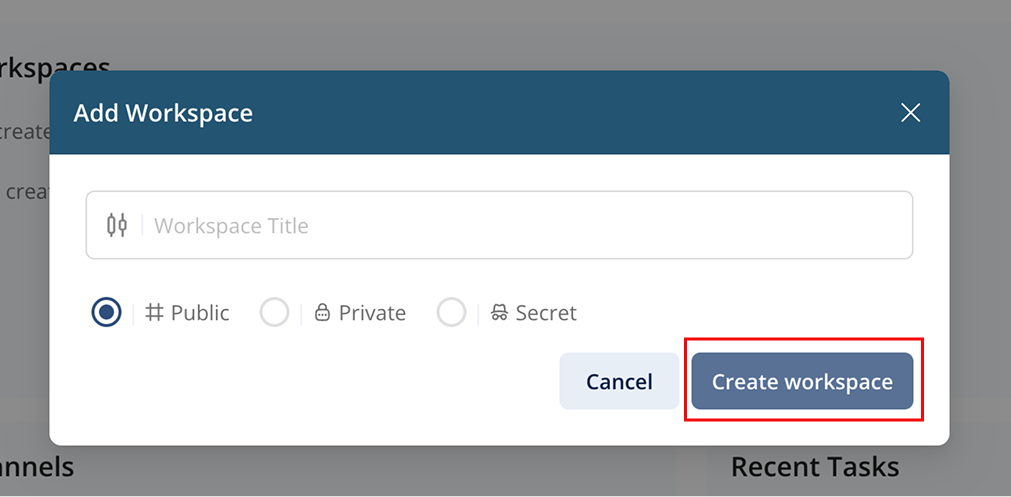
Step 3: Confirm and Create
After entering the workspace name and selecting the type, click the 'Create' button. Your workspace will be created instantly and appear in the Sidebar under 'Workspaces'.
You can now invite team members, attach files, and start organizing your projects.
Created Workspaces
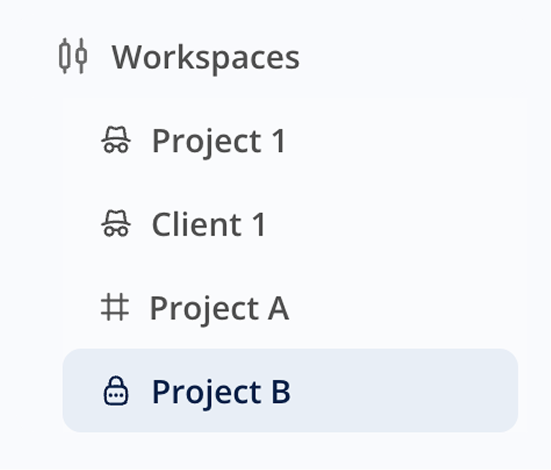
- All the workspaces secret, public, private will be displayed on sidebar and will look like the image below:
Tips for Effective Workspace Setup
- Use a clear and descriptive workspace name to make it easy for team members to identify.
- Choose the workspace type based on your collaboration and privacy needs.
- Add relevant projects and boards immediately to keep your workspace organized.
- Invite only necessary members initially, then expand access as needed.
Get Started Today
Create your first workspace today Create your first space and experience how Alliesia streamlines team collaboration, client communication, and project management in one unified platform.