Workspaces in Alliesia
Invite Members to a Workspace in Alliesia
Invite team members or external collaborators to your workspace directly from the Sidebar. Alliesia makes it easy to manage who has access to your work.
Click the three-dot menu next to a workspace and select 'Invite Members'. A pop-up modal will appear where you can add users via email. You can also assign roles and control access levels to ensure the right people have the right permissions.
Inviting Members in Public Workspaces
For Public Workspaces, simply enter the user's email in the invite modal and send the invite. Invited members will automatically gain access to all public workspaces and can start collaborating immediately.
Inviting Members in Private Workspaces
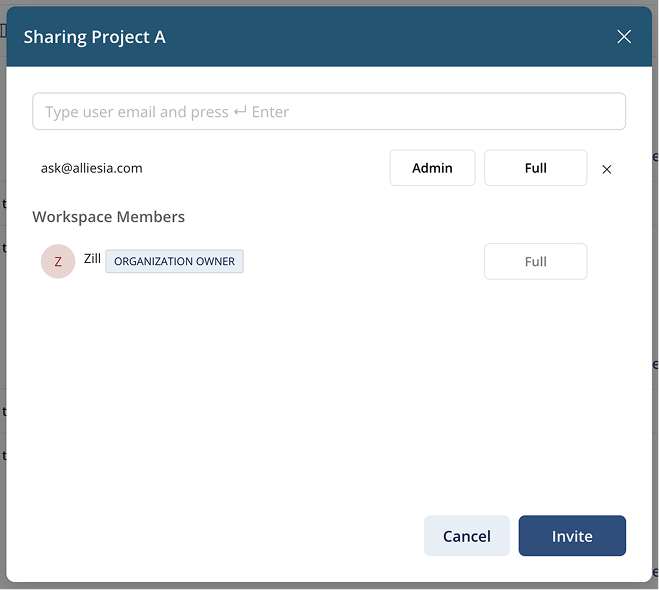
In Private Workspaces, the invite modal works the same way. Add the user's email, send the invite, and they gain access to that specific private workspace as well as any public workspaces. Private workspace access ensures that sensitive projects remain limited to invited members only.
Inviting Members in Secret Workspaces
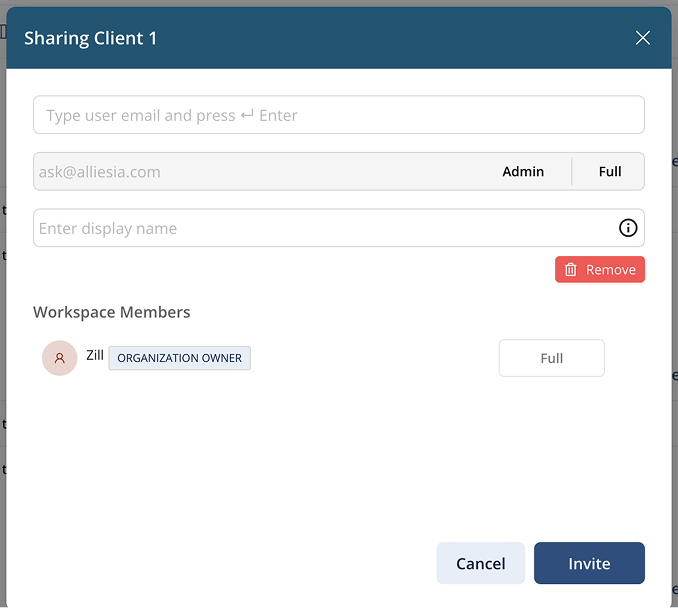
Secret Workspaces are fully isolated. When inviting members, the modal allows you to enter an email and optionally a nickname. Invited members can only access that secret workspace and cannot see public or private workspaces. This ensures complete privacy for client or confidential projects.
Assigning Roles and Permissions
While inviting members, you can assign roles to control their level of access:
- Admin – full control over the workspace and its settings.
- Member – standard access to collaborate on projects.
- Custom Permissions – assign Edit, Comment, or View-only access to fine-tune collaboration rights.
Pro Tips
- Always double-check email addresses to avoid sending invites to the wrong users.
- Use roles and permissions to protect sensitive work in private and secret workspaces.
- Secret workspace invitations are ideal for clients or external partners to ensure privacy.